Monday, August 4, 2014

56. Carousel


The Carousel can be used to create a slide show. Here, we will have a 1-second delay between each slide.


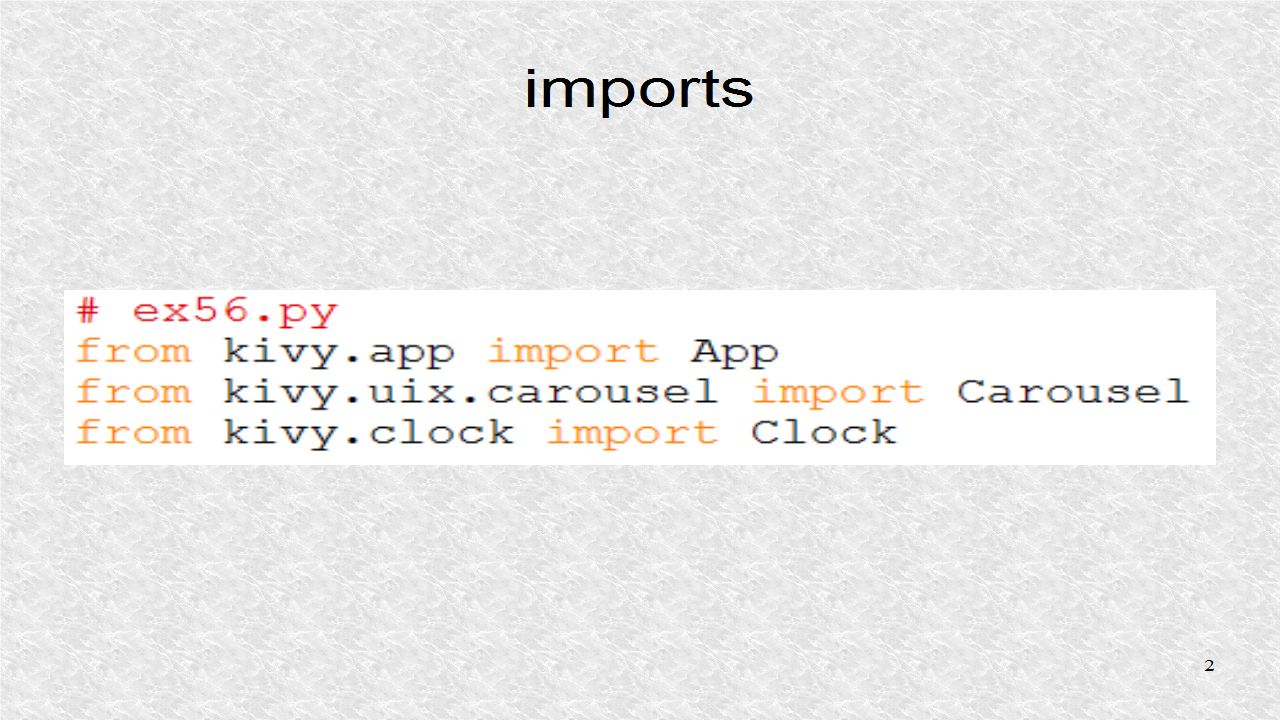
Since this is an application, we need the App class. The Carousel widget is the super class of the root. We use the Clock to create a 1-second timer.


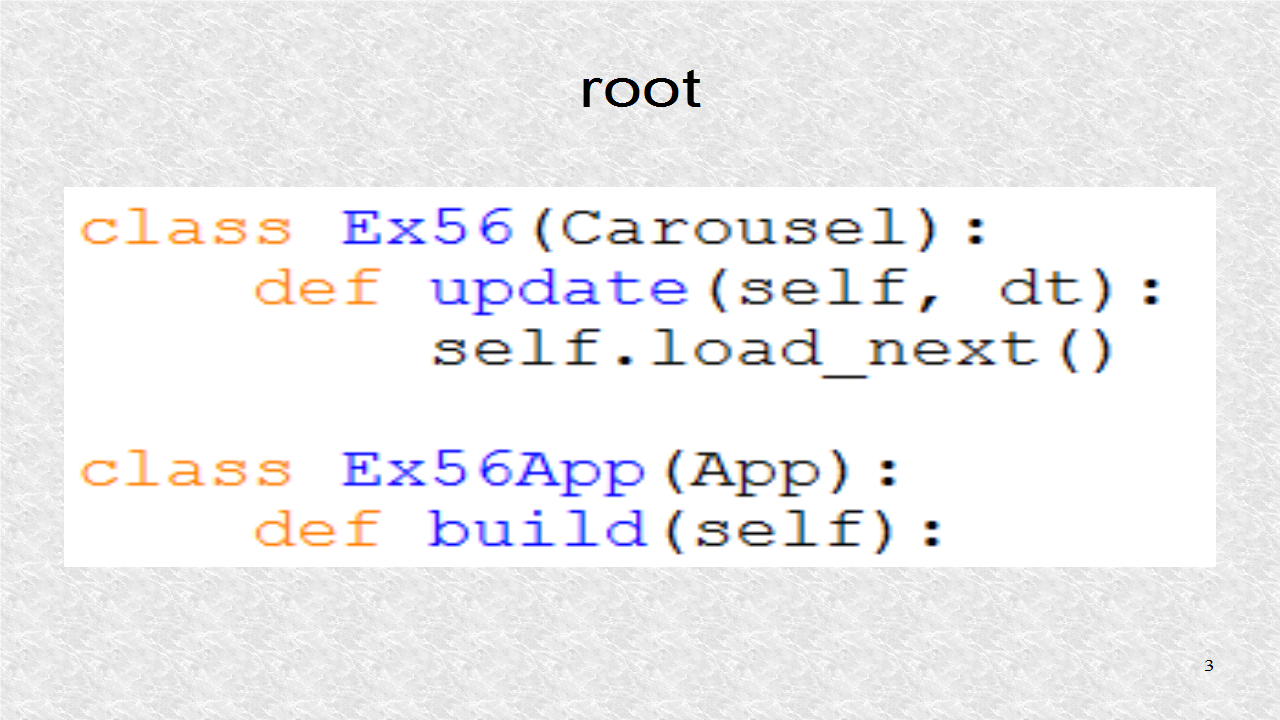
The root is based on Carousel. The update() function runs the Carousel's load_next() function to load the next slide.


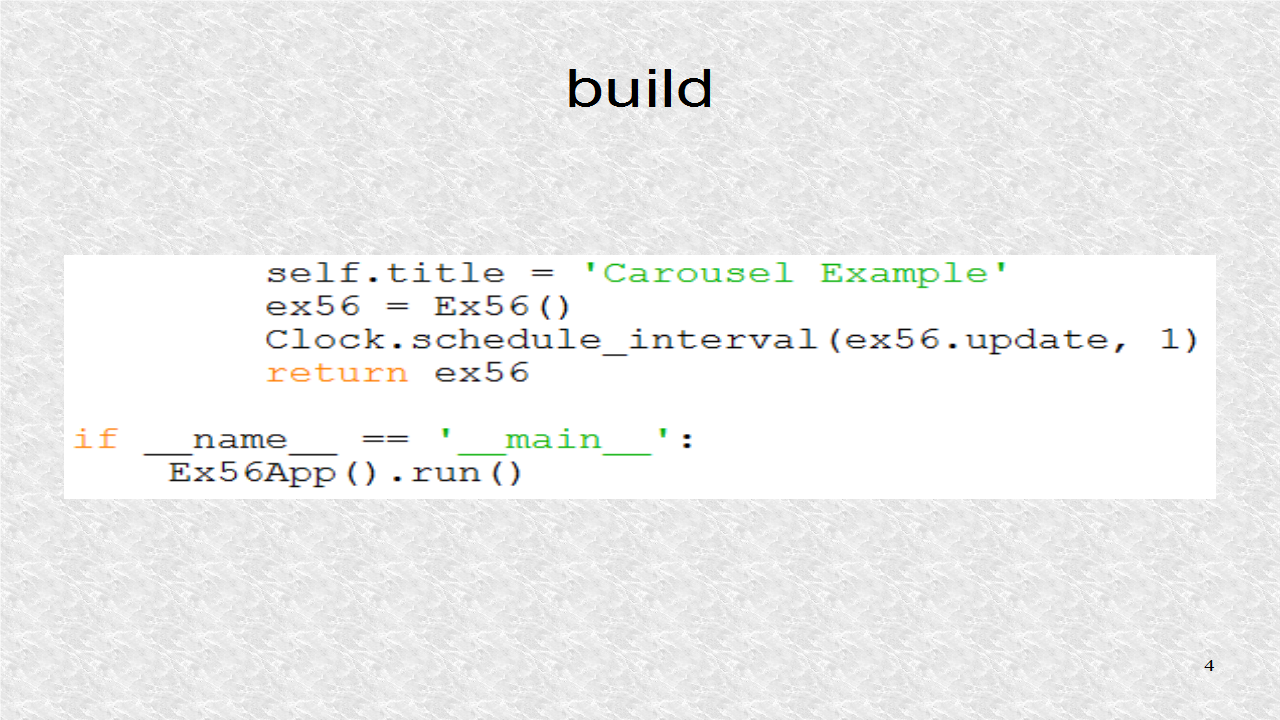
In the build() of the app, a title is set and a continuous 1-second timer is started.

# ex56.py
from kivy.app import App
from kivy.uix.carousel import Carousel
from kivy.clock import Clock

class Ex56(Carousel):
    def update(self, dt):
        self.load_next()

class Ex56App(App):
    def build(self):
        self.title = 'Carousel Example'
        ex56 = Ex56()
        Clock.schedule_interval(ex56.update, 1)
        return ex56

if __name__ == '__main__':
    Ex56App().run()


In the kv file, a dynamic class MyImage is created so the images are stretched.
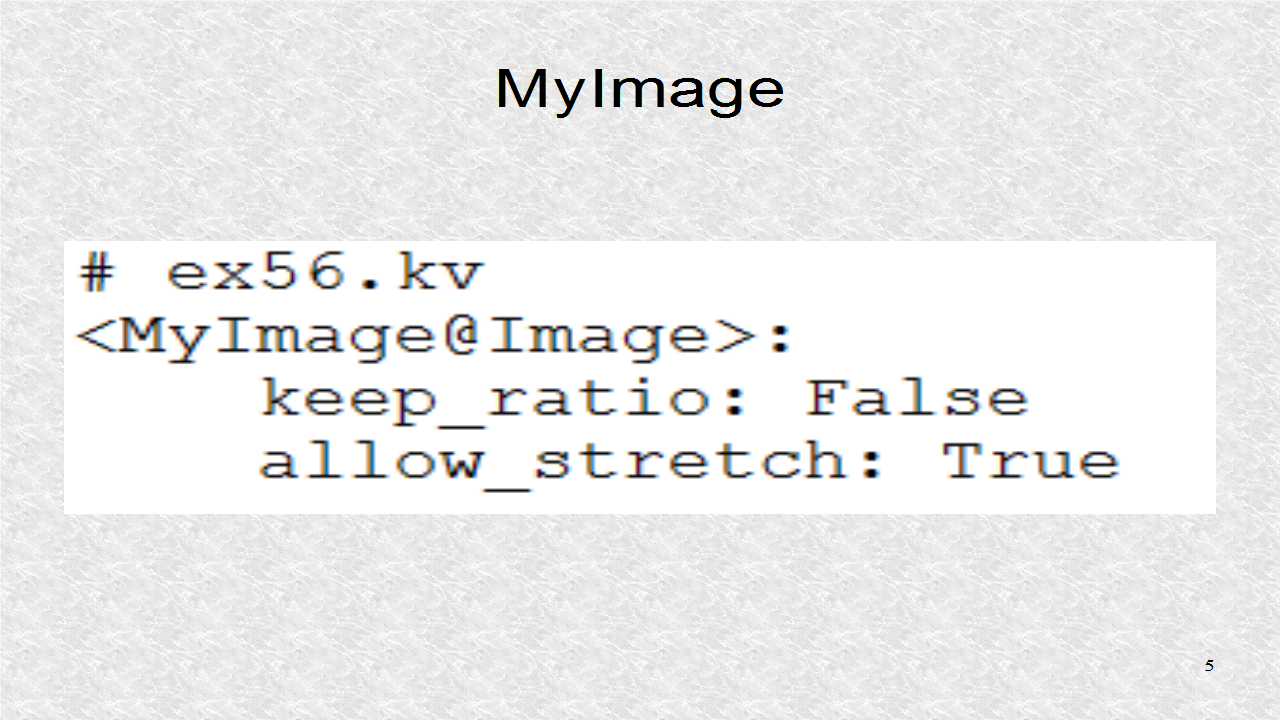


For the root, the direction of Carousel is 'right' and looping is True. Here, we have the first 2 images.
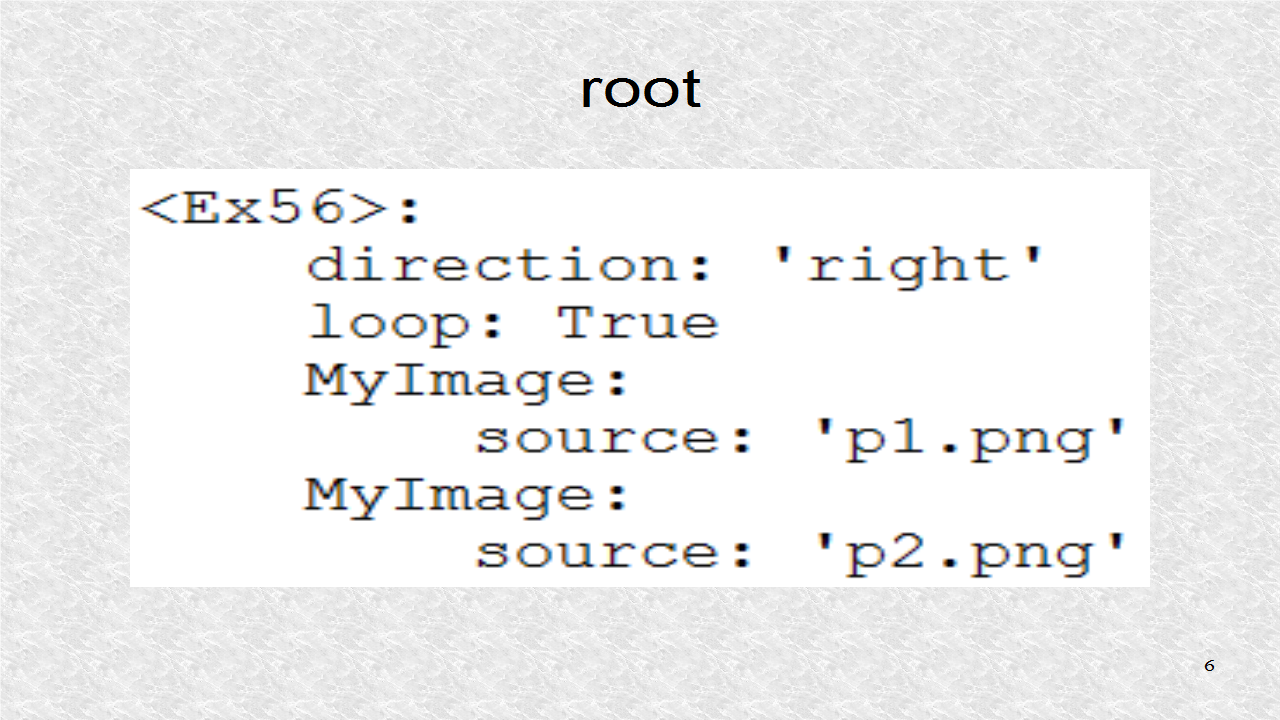


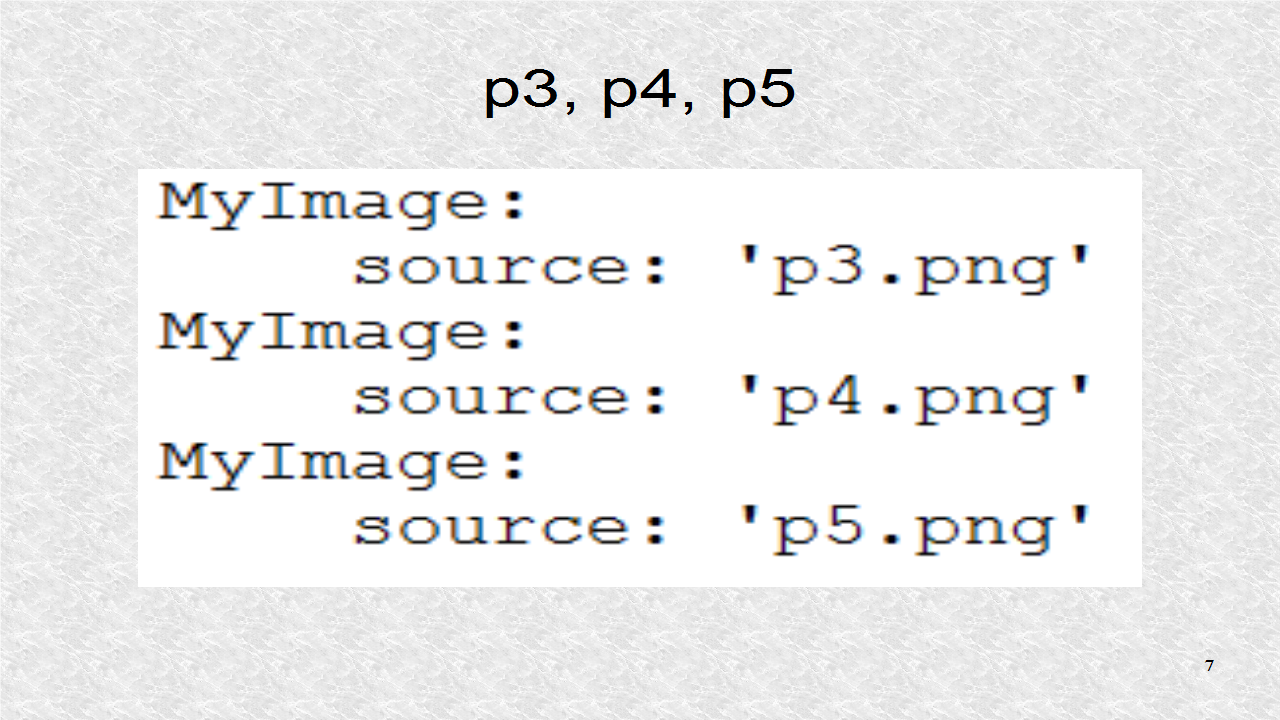
The next 3 slides are of images p3, p4 and p5.

# ex56.kv
<MyImage@Image>:
    keep_ratio: False
    allow_stretch: True
    
<Ex56>:
    direction: 'right'
    loop: True
    MyImage:
        source: 'p1.png'
    MyImage:
        source: 'p2.png'
    MyImage:
        source: 'p3.png'
    MyImage:
        source: 'p4.png'
    MyImage:
        source: 'p5.png'


Demo of App on Youtube.

Saturday, August 2, 2014

55. FileChooser

If an application requires user data, we might display the FileChooser.


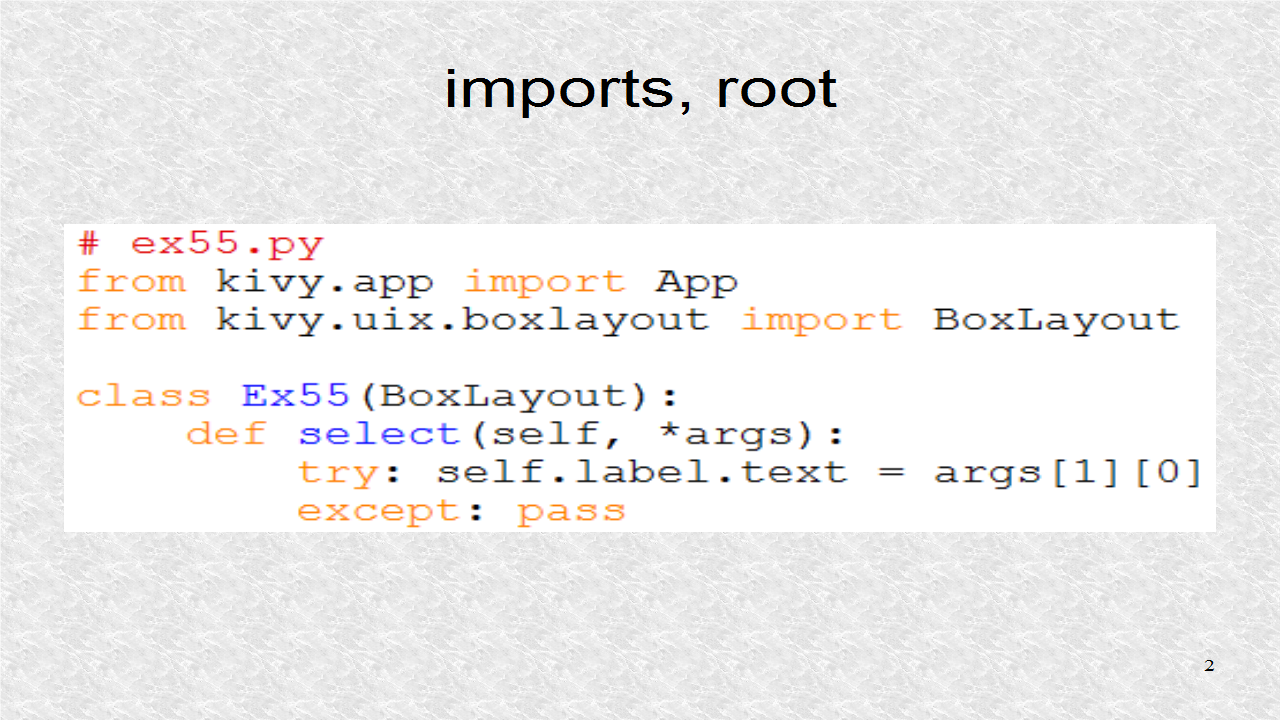
Since this is an application, we need the App class. The root is based on BoxLayout. The root has one function, select(). This will be called from the kv file, when the user selects any file. If a filename has been passed to select(), it will pass it to the label. label is defined in the kv file and is an attribute.


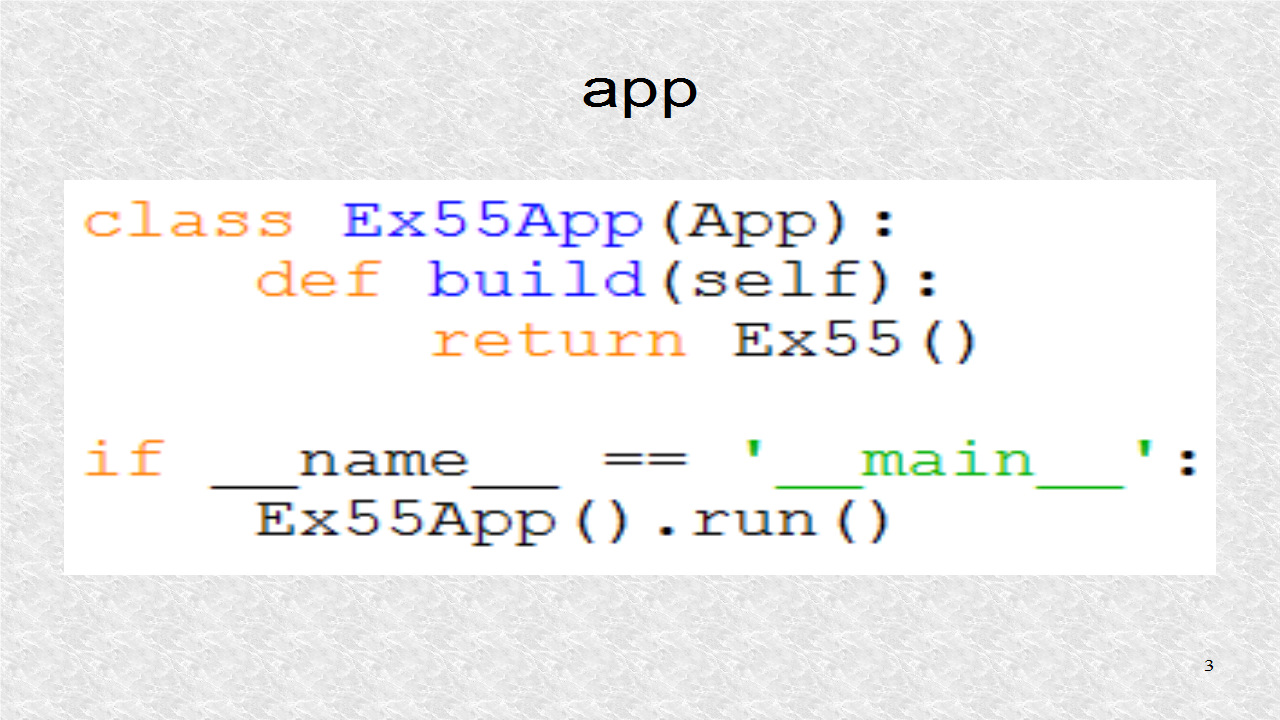
In the app class, we have to return the root class.


# ex55.py
from kivy.app import App
from kivy.uix.boxlayout import BoxLayout

class Ex55(BoxLayout):
    def select(self, *args):
        try: self.label.text = args[1][0]
        except: pass

class Ex55App(App):
    def build(self):
        return Ex55()
    
if __name__ == '__main__':
    Ex55App().run()


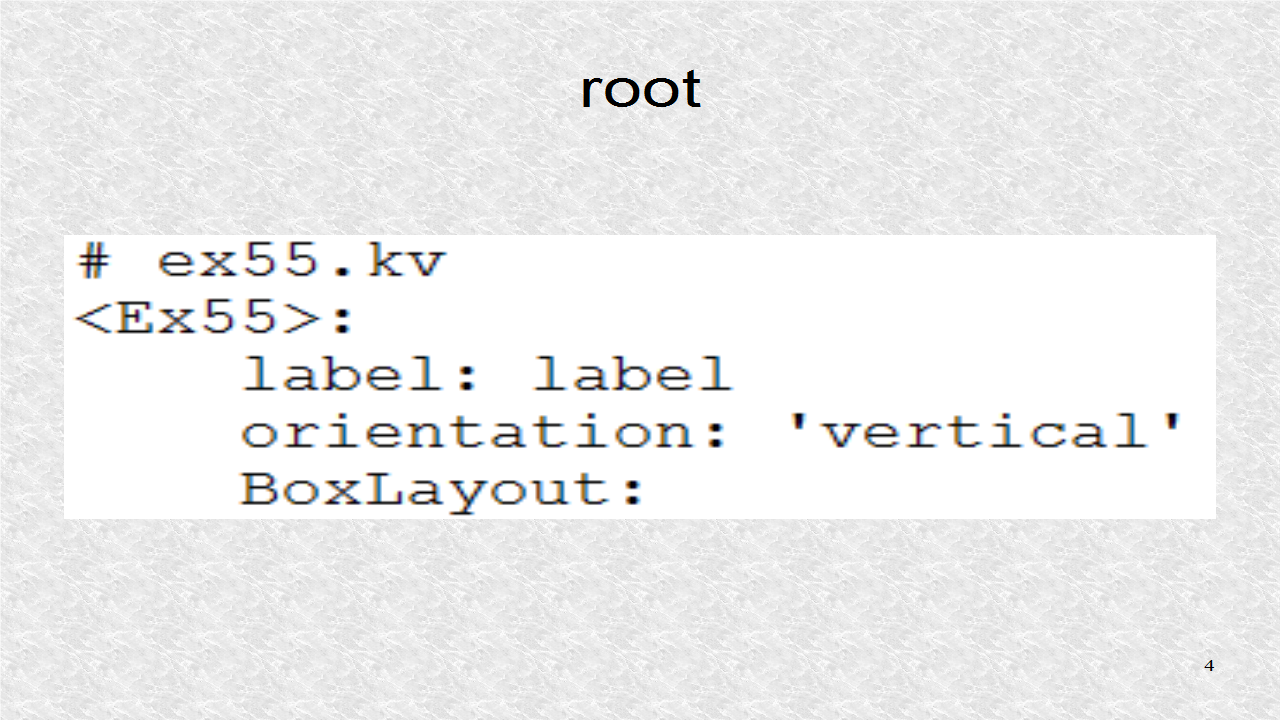
In the kv file, we define the outer BoxLayout to have a 'vertical' orientation, and then we start the inner BoxLayout.


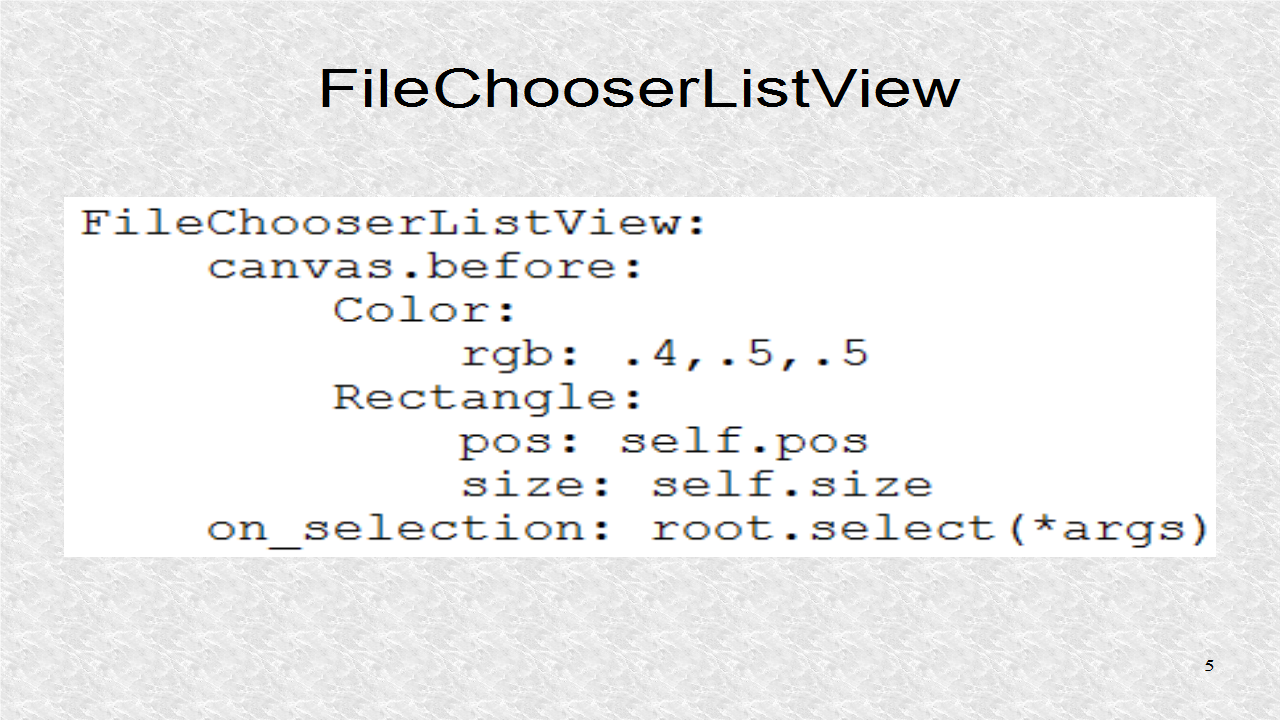
The inner BoxLayout has a default orientation of 'horizontal'. The first element is a FileChooserListView. We first set a background color. The on_selection is called, when the user selects a particular file, by clicking it. It will call the select() function.


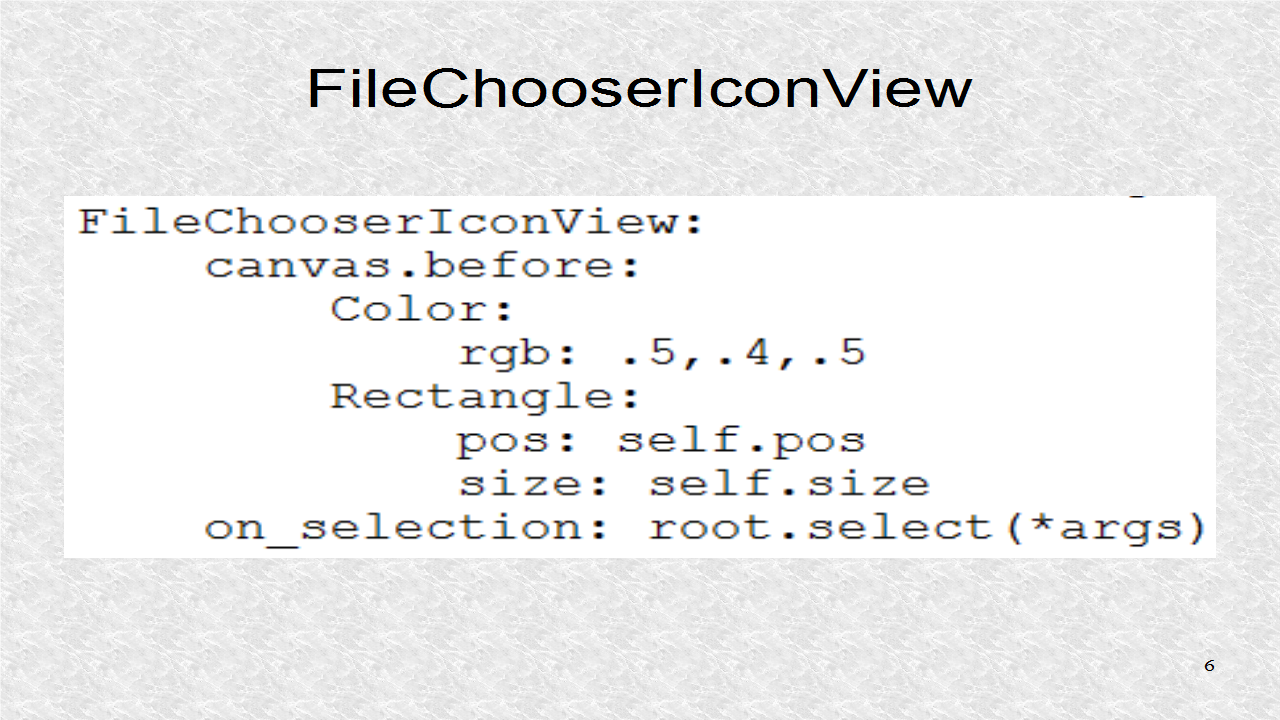
The next element in the Boxlayout is FileChooserIconView. We set a background color, and route the selected filename, to the select() function.


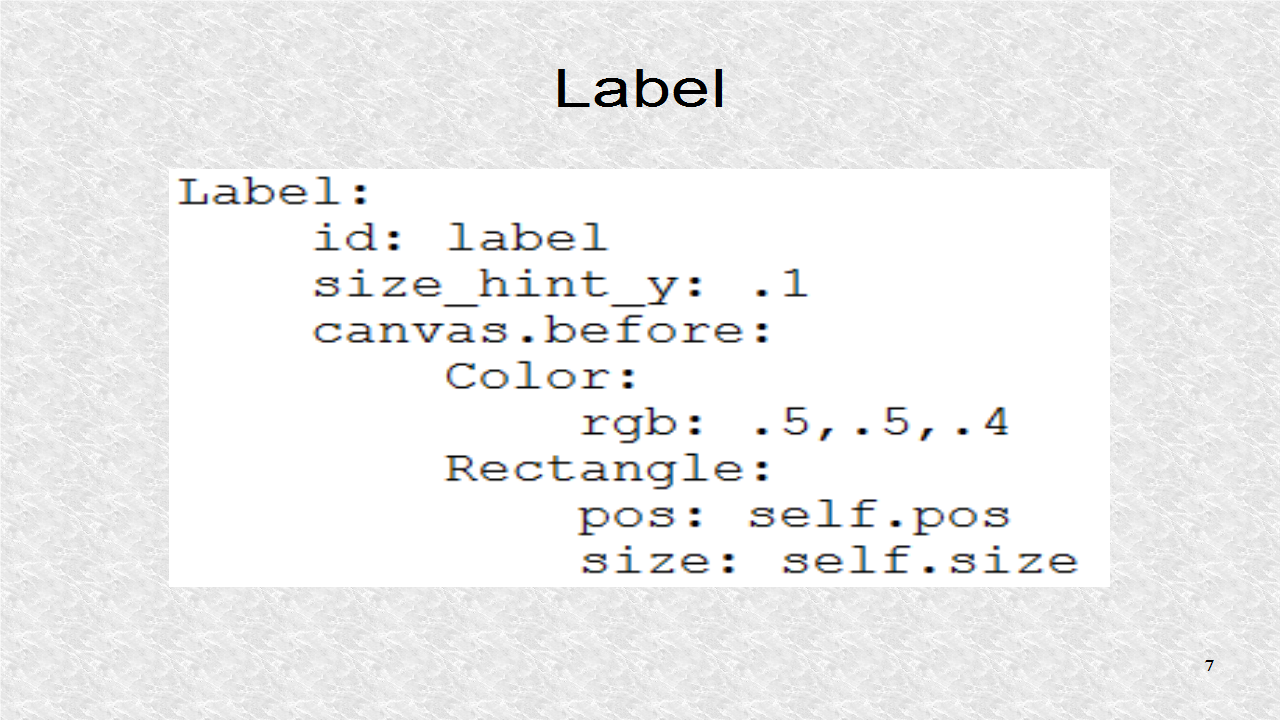
Finally, we have a Label. It has an ID of label, which was used earlier in the attribute definition. It has a small size_hint in y direction as it will occupy a small portion of the screen at the bottom. We then set a background color.


# ex55.kv
<Ex55>:
    label: label
    orientation: 'vertical'
    BoxLayout:
        FileChooserListView:
            canvas.before:
                Color:
                    rgb: .4,.5,.5
                Rectangle:
                    pos: self.pos
                    size: self.size
            on_selection: root.select(*args)
        FileChooserIconView:
            canvas.before:
                Color:
                    rgb: .5,.4,.5
                Rectangle:
                    pos: self.pos
                    size: self.size
            on_selection: root.select(*args)
    Label:
        id: label
        size_hint_y: .1
        canvas.before:
            Color:
                rgb: .5,.5,.4
            Rectangle:
                pos: self.pos
                size: self.size


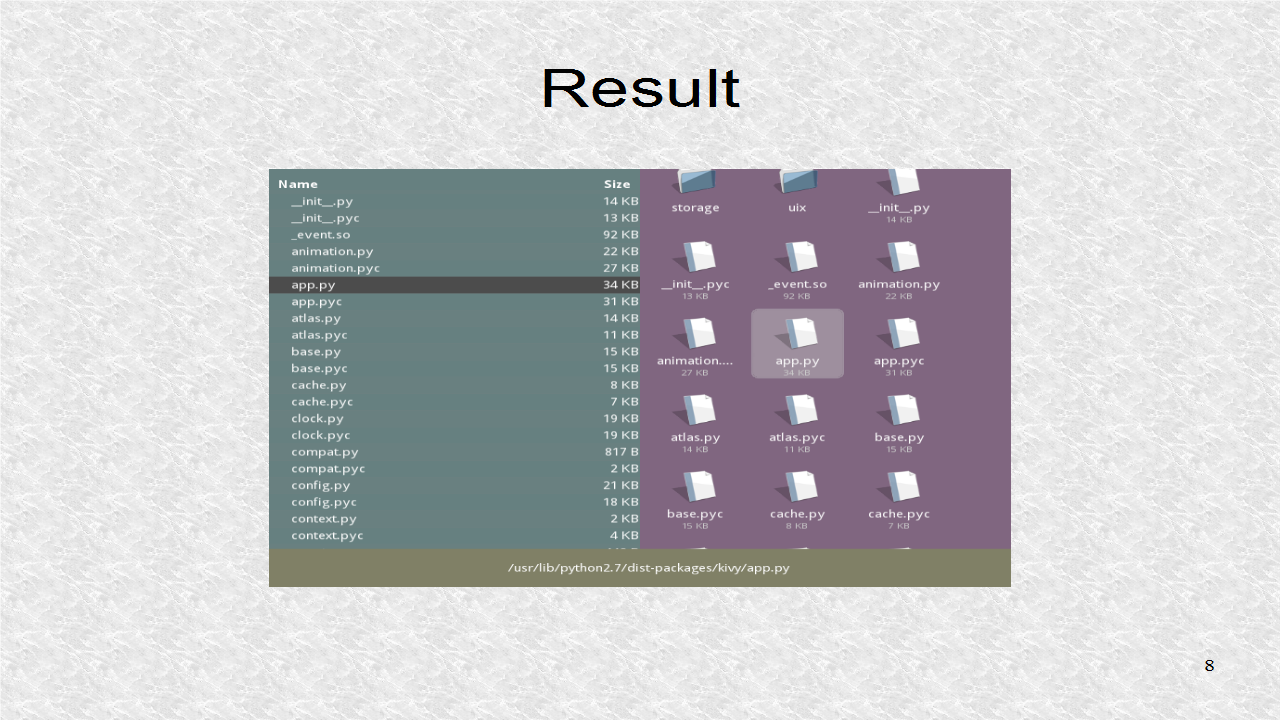
In the result, we can see the two FileChooser views, on the top-left, and top-right, which together, are about 90% of the screen area. These have different background colors, set in the kv file. The label on the bottom, indicates currently selected file.